The short version
Download it, drag it to Applications, open it. When macOS asks to install Rosetta, click Install. That is the whole job — two extra clicks, and nothing you need to prepare in advance.
Graphite v13 SE (build 13.0.86) is an Intel application. macOS 27 Golden Gate runs Intel applications through Rosetta, and Rosetta is not on a Mac until something needs it. So the first time you open Graphite SE, macOS itself offers to install Rosetta — free, from Apple, one button. You do not have to know any of this beforehand, and there is nothing to buy or download separately.
Apple adds one warning to that same prompt, and it is worth reading: “Intel-based apps requiring Rosetta will not open in macOS 28, the next major release.” That is Apple's notice about next year, not a problem with this install.
Before you start
- A Mac with Apple silicon running macOS 27 Golden Gate.
- The Mac's administrator name and password — macOS asks for it to install Rosetta.
- An internet connection. Rosetta comes from Apple's servers, and the Graphite SE installer is about 521 MB.
- Your Graphite SE serial number and registration code, for the last step.
Step by step
1. Open the download page
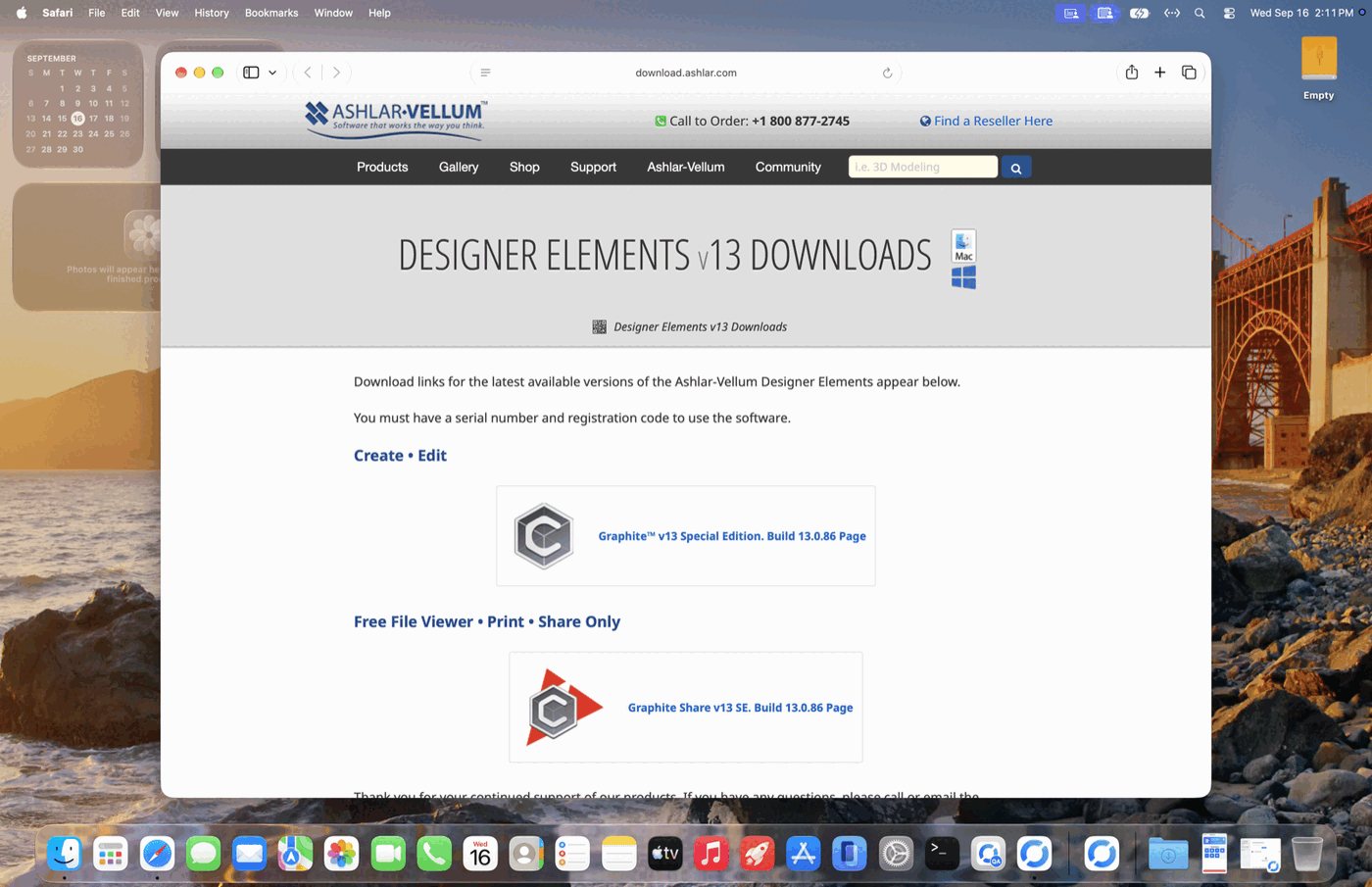
In Safari, go to ashlar.com/v13. It lands on the Designer Elements v13 downloads page.
2. Choose the macOS build of Graphite v13 SE
Click “Graphite™ v13 Special Edition. Build 13.0.86 Page.” On that page, scroll to the macOS section and click its Download button — the one labelled 521MB .dmg Full Installer. The first time, Safari asks whether to allow downloads from d.ashlar.com; click Allow.
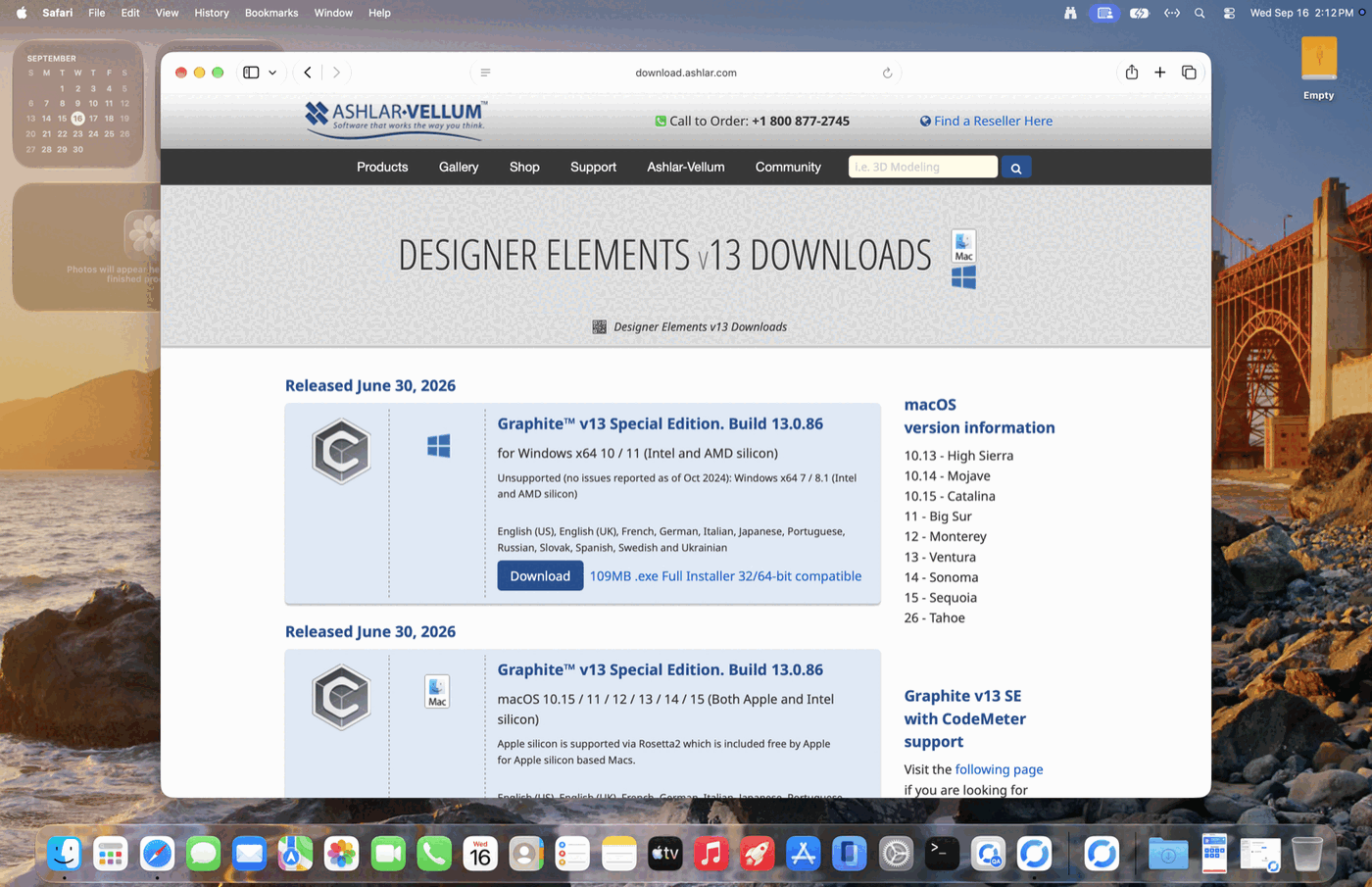
One clarification about the note on this page. Rosetta 2 is free from Apple, as it says — but it is not pre-installed on any version of macOS. On macOS 11 Big Sur through macOS 26 Tahoe it installs on demand the first time you open an Intel application, and then stays installed. On macOS 27 Golden Gate you are asked again, and it is still free and still one button. Apple's own instruction is exactly that: “If you’re asked to install Rosetta … click Install and enter your macOS user name and password to allow installation to proceed.”
3. Open the disk image and accept the license
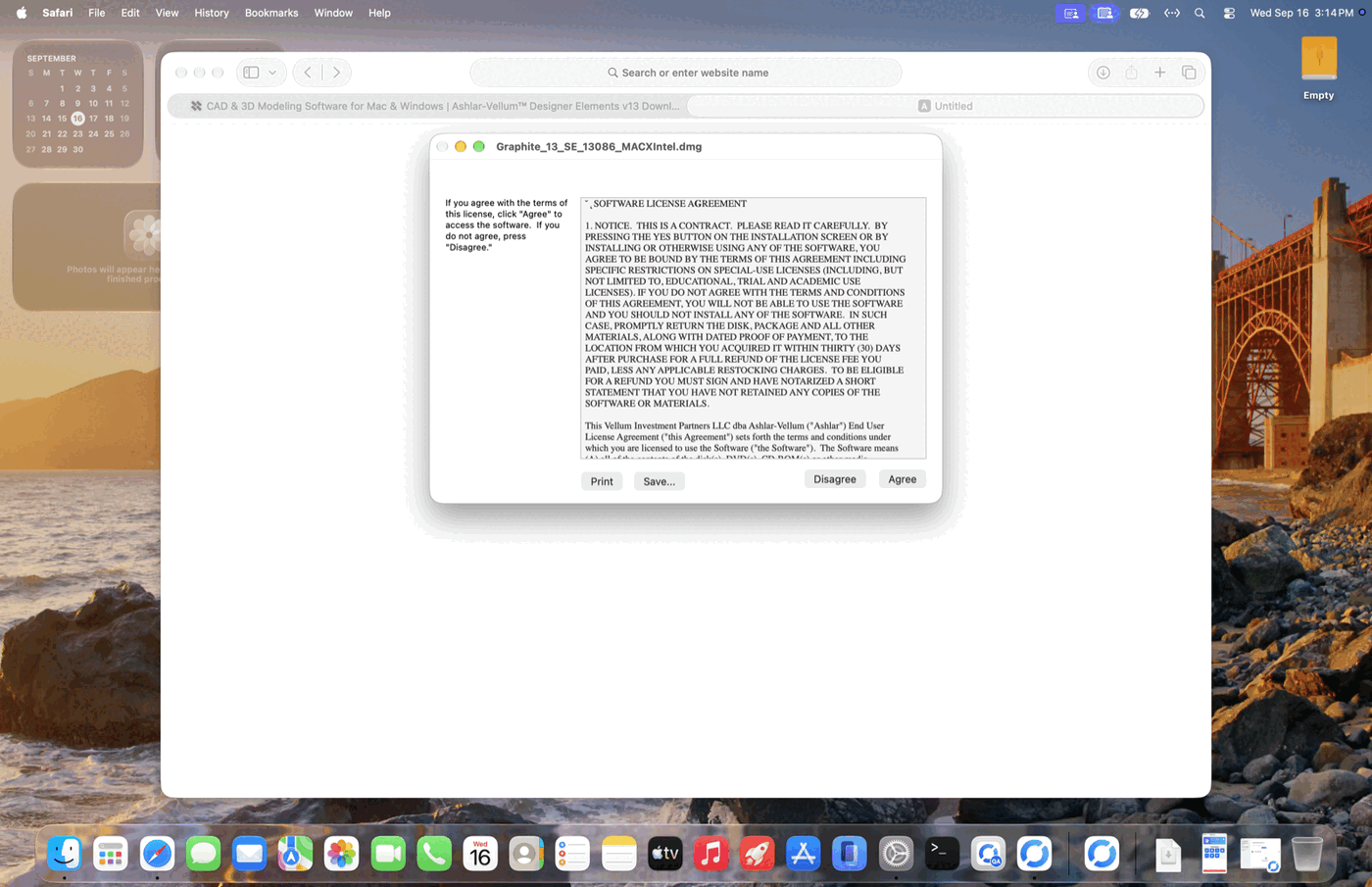
Open the downloaded Graphite_13_SE_13086_MACXIntel.dmg — from the Downloads folder, or from Safari's downloads list. A Software License Agreement appears; click Agree.
4. Drag Graphite SE into Applications
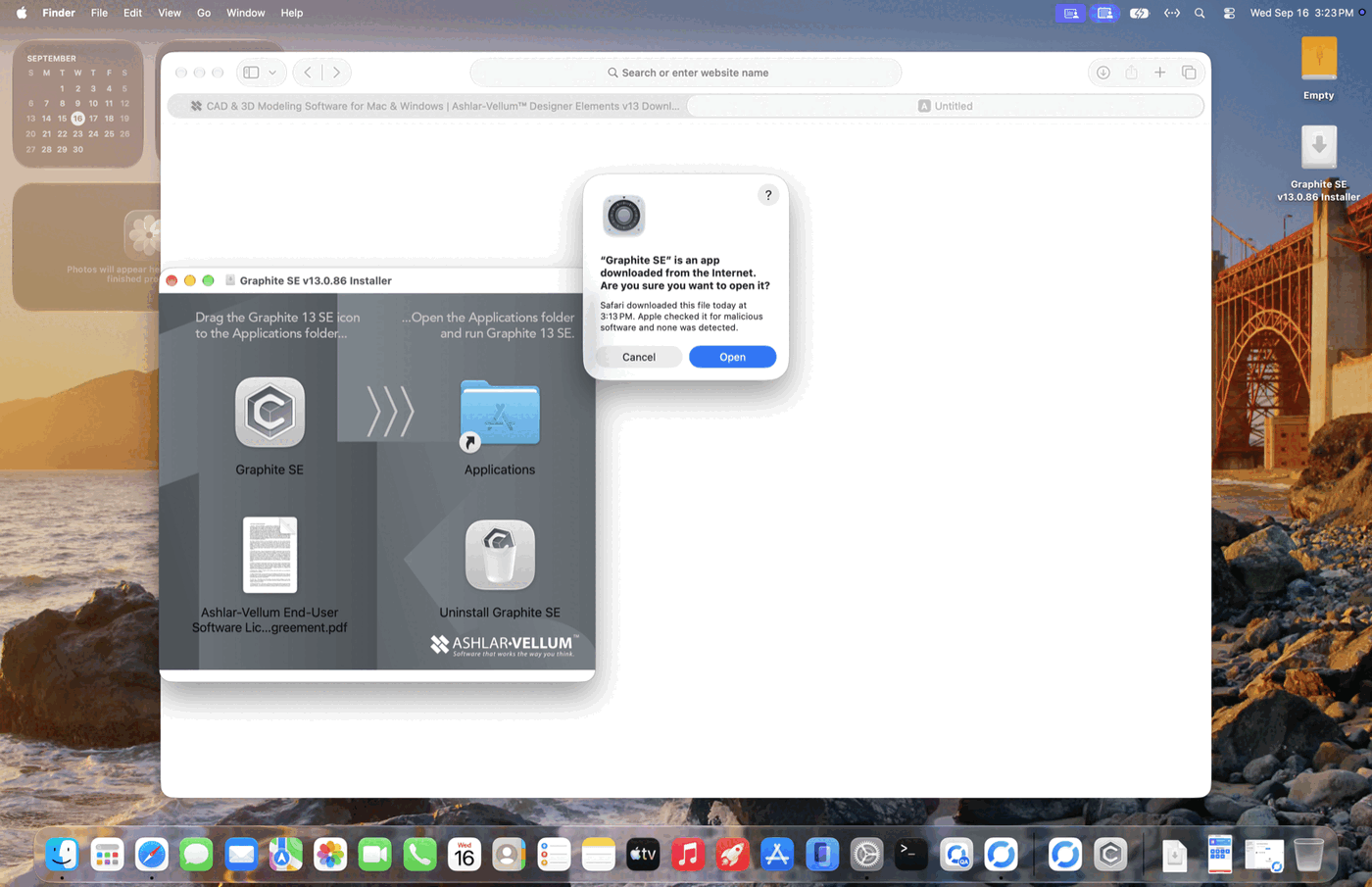
The disk image opens to an installer window. Drag the Graphite SE icon onto the Applications folder.
5. Open Graphite SE — and install Rosetta when asked
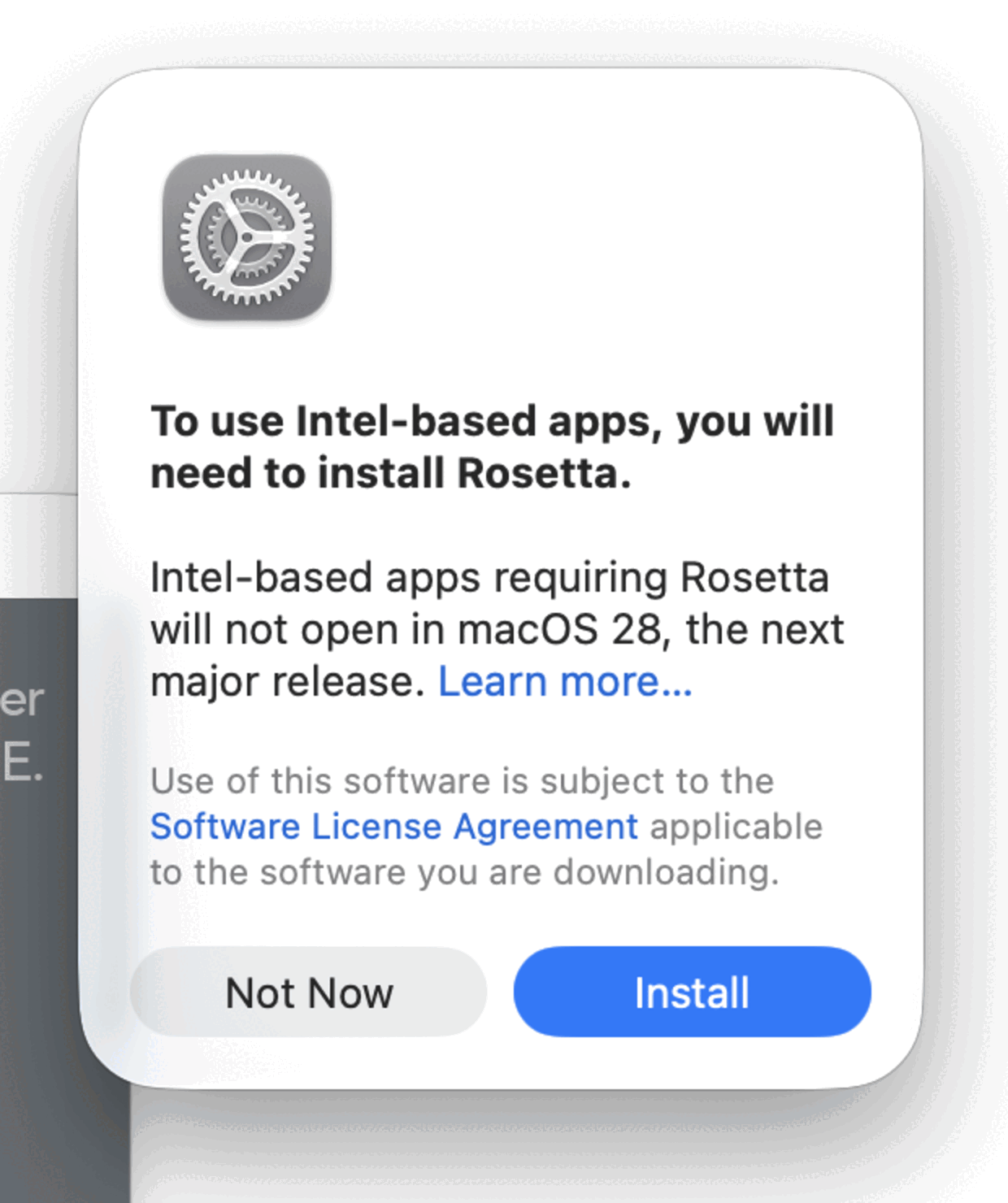
Open Applications ▸ Graphite SE. Because this is an Intel application and the Mac has no Rosetta yet, macOS shows this:
To use Intel-based apps, you will need to install Rosetta.
Intel-based apps requiring Rosetta will not open in macOS 28, the next major release.
[ Not Now ] [ Install ]
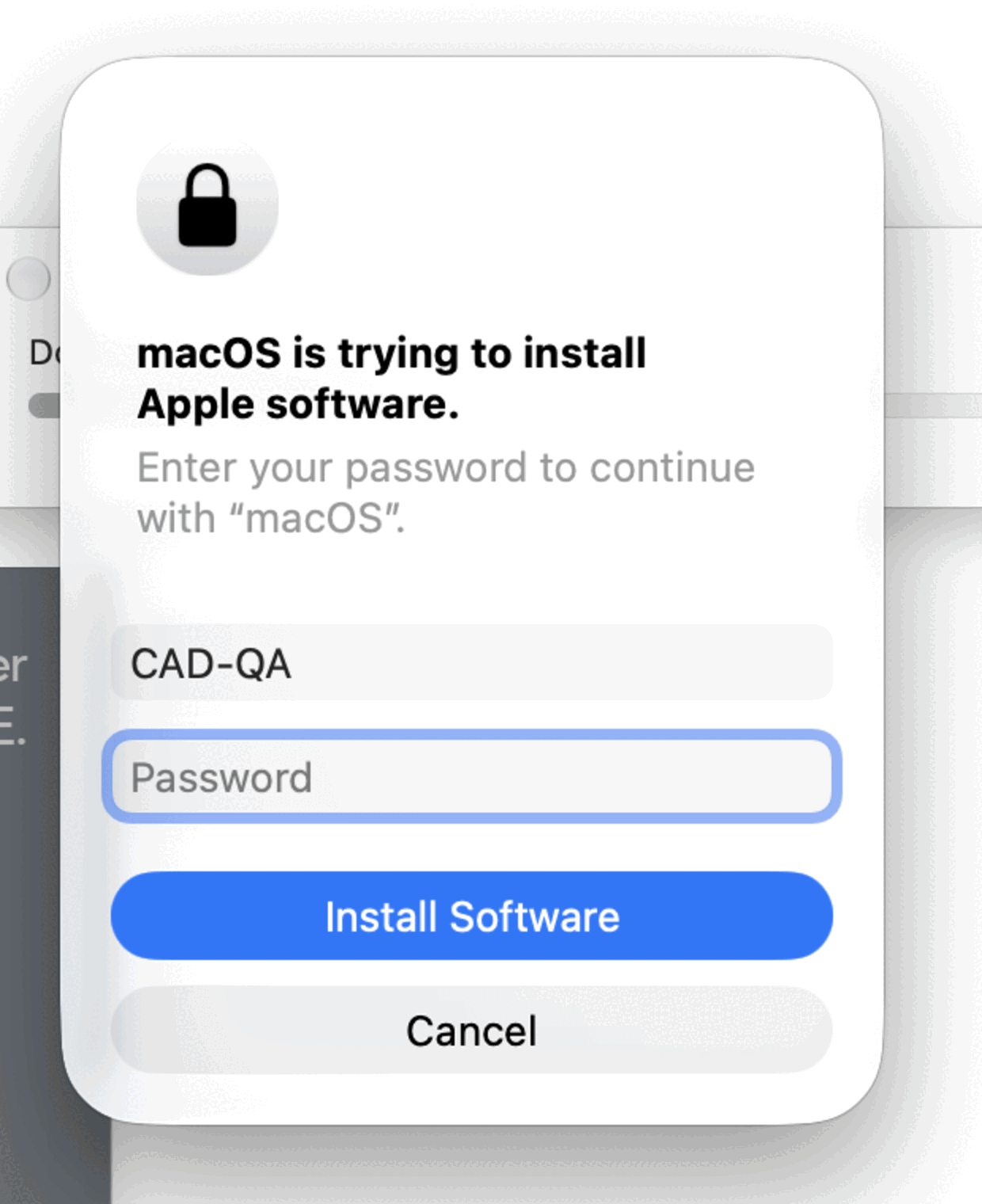
Click Install, then enter the Mac's administrator name and password and click Install Software. Rosetta downloads from Apple and installs itself; you never see it again, and it works in the background from then on.
If you clicked “Not Now”
Nothing is broken. Graphite SE simply will not open until Rosetta is installed, and macOS asks again the next time you open it — so open Graphite SE once more and click Install.
If you would rather do it before opening anything, Apple documents
a Terminal command that installs Rosetta directly:
softwareupdate --install-rosetta. Either route ends
in the same place.
6. Confirm the downloaded-app check
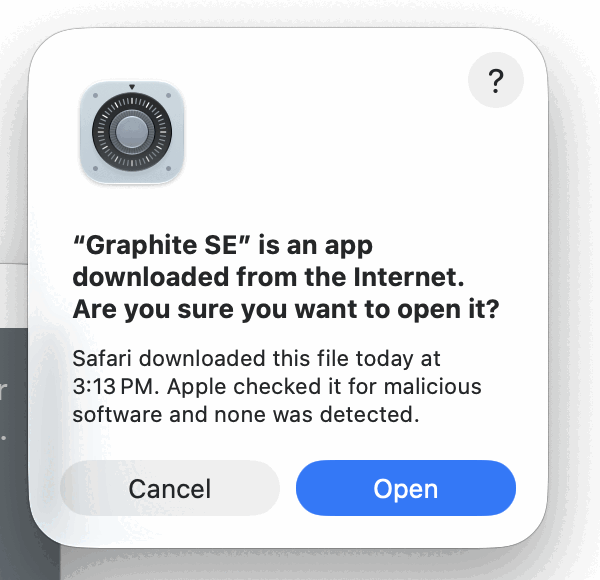
On first launch macOS confirms the application is safe — “Apple checked it for malicious software and none was detected.” Click Open. This appears once, for anything downloaded from the internet.
7. Let Graphite SE see your local network
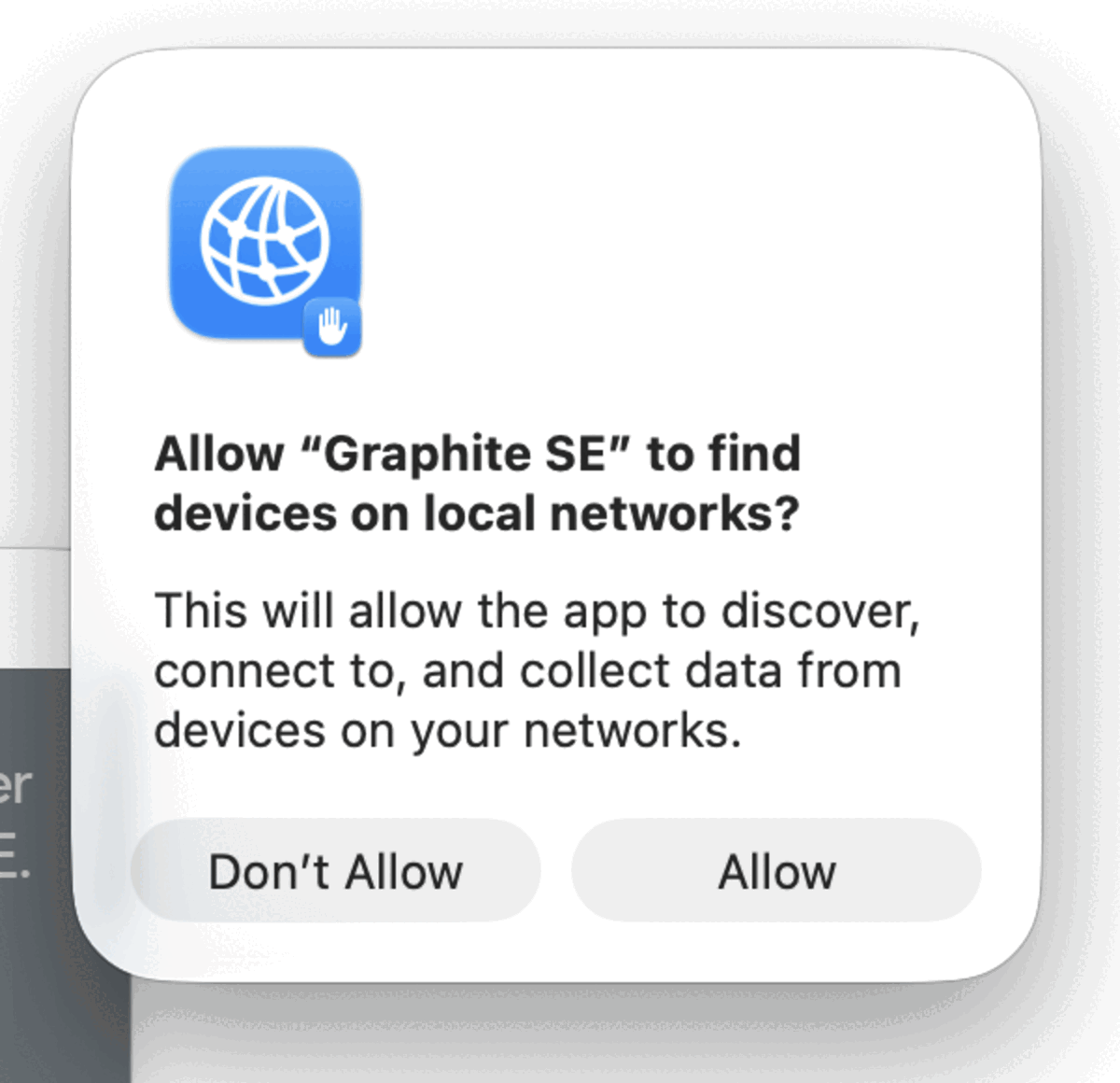
macOS asks one more question the first time Graphite SE opens:
Allow “Graphite SE” to find devices on local networks?
This will allow the app to discover, connect to, and collect data from devices on your networks.
[ Don't Allow ] [ Allow ]
Click Allow. This is Apple's prompt rather than ours, and it appears once.
8. Register Graphite SE
Graphite SE opens to a new drawing and shows the Register Graphite window. The four boxes arrive with our placeholder text in them — Code Required, Contact, EMAIL: CODES@ASHLAR.COM, visit:www.ashlar.com/codes. That is not your registration: replace all four with your own details.
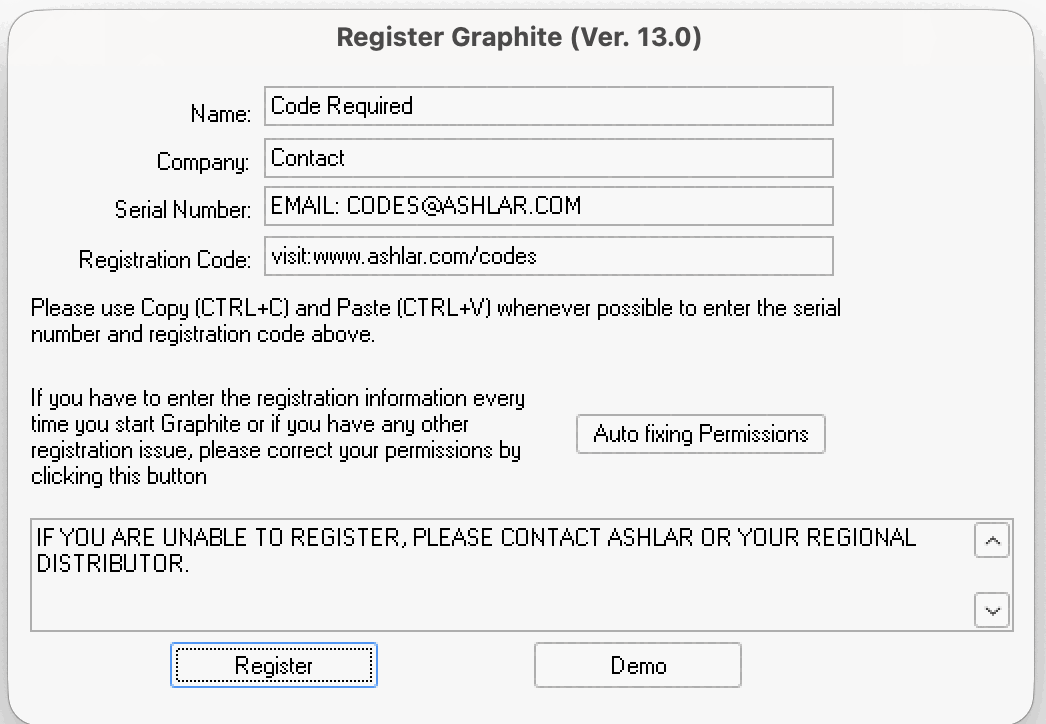
- Name and Company are not required — but whatever you put there is written into every file you save, so it is worth entering something sensible rather than leaving our placeholder text.
- Serial number. Yours begins
C6SEv13-. Type it in any case you like — Graphite capitalizes it for you. - Registration code. Four groups of six, like
xxxxxx-xxxxxx-xxxxxx-xxxxxx. Your email says clearly which is which, and the two never look alike. - Copy and paste rather than type. The window asks for this itself, and it is the single best way to avoid a rejected code.
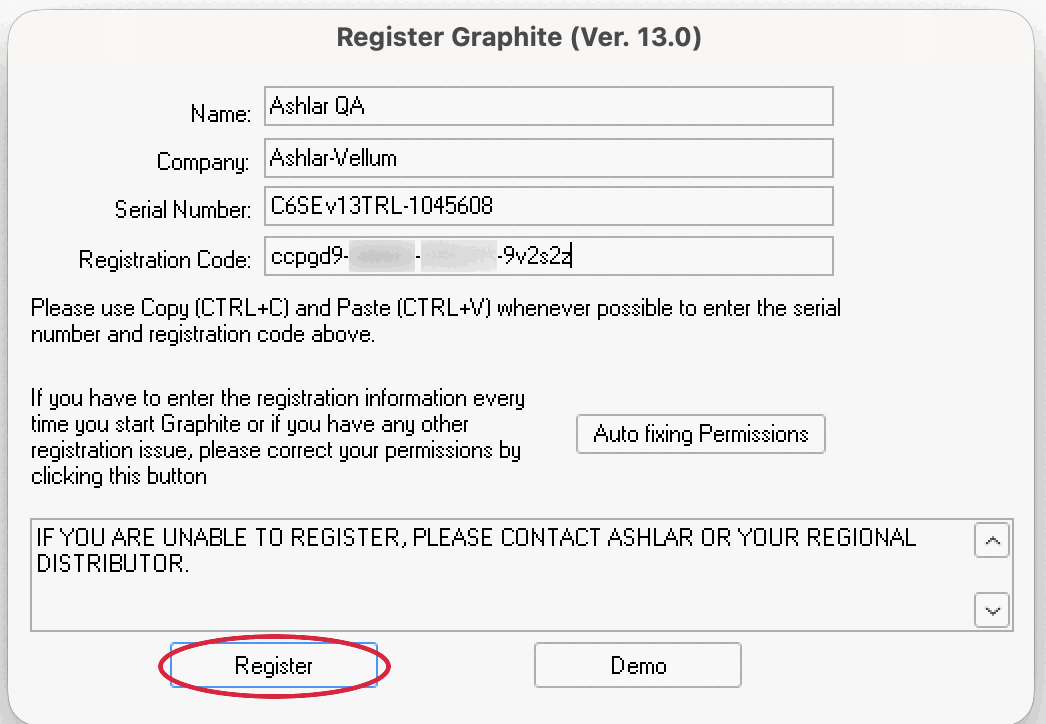
Click Register. When it takes, the window closes and Graphite SE opens its drawing window with the full menu bar — File, Edit, Layout, Arrange, Pen, Text, Dimension, Views, 3D, Utilities, Window and Help. Before you register the menu bar carries only Graphite SE and Edit, so the menu bar on its own tells you which state you are in.
What that window means the next time you see it
The Registration Code box reads
visit:www.ashlar.com/codes again every time
— and that never means your code was lost.
Graphite SE does not show a stored registration code back to
you. The box reads that way on a fully registered Mac,
whether the registration is a trial or a permanent one. It is
the most misleading thing in the window, and it is not a
fault.
The one moment a code does come back is in the same session you
typed it: press Register and the box redisplays
what you typed with its middle groups masked, in the shape
xxxxxx-******-******-xxxxxx. That happens whether the
registration was accepted or refused, so it is not a success
signal either.
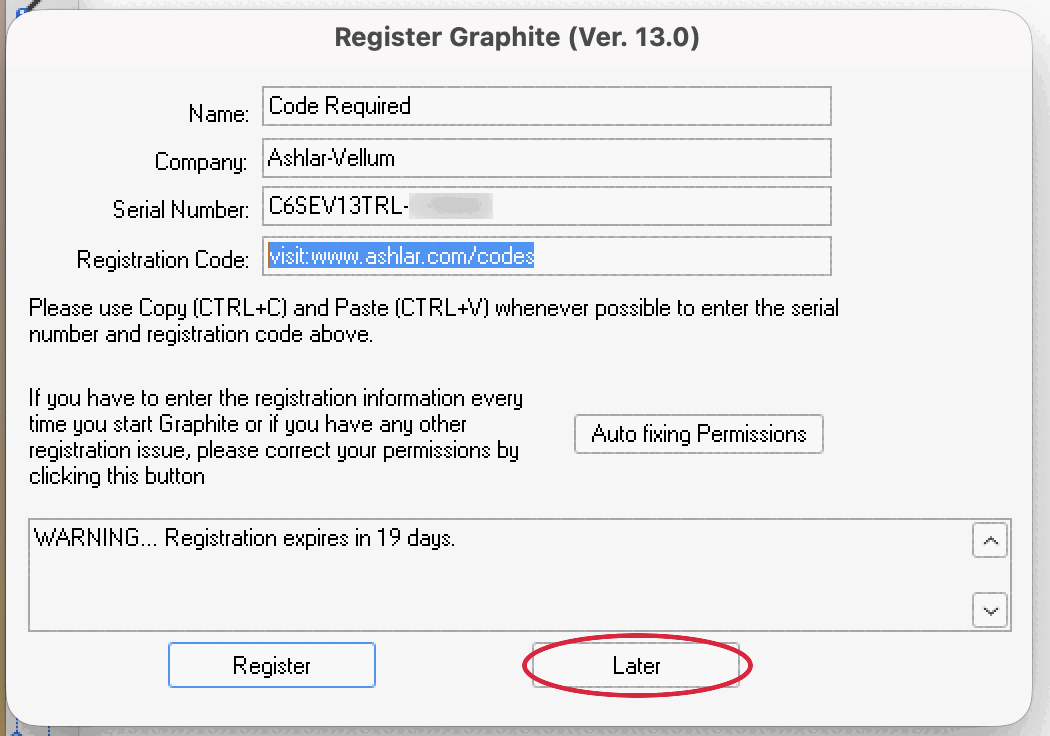
The button row is what tells you the state.
- Demo — not registered.
- Later — registered, and the registration expires soon. Graphite SE re-opens this window by itself when there is about a month to go, and the message box counts the days down.
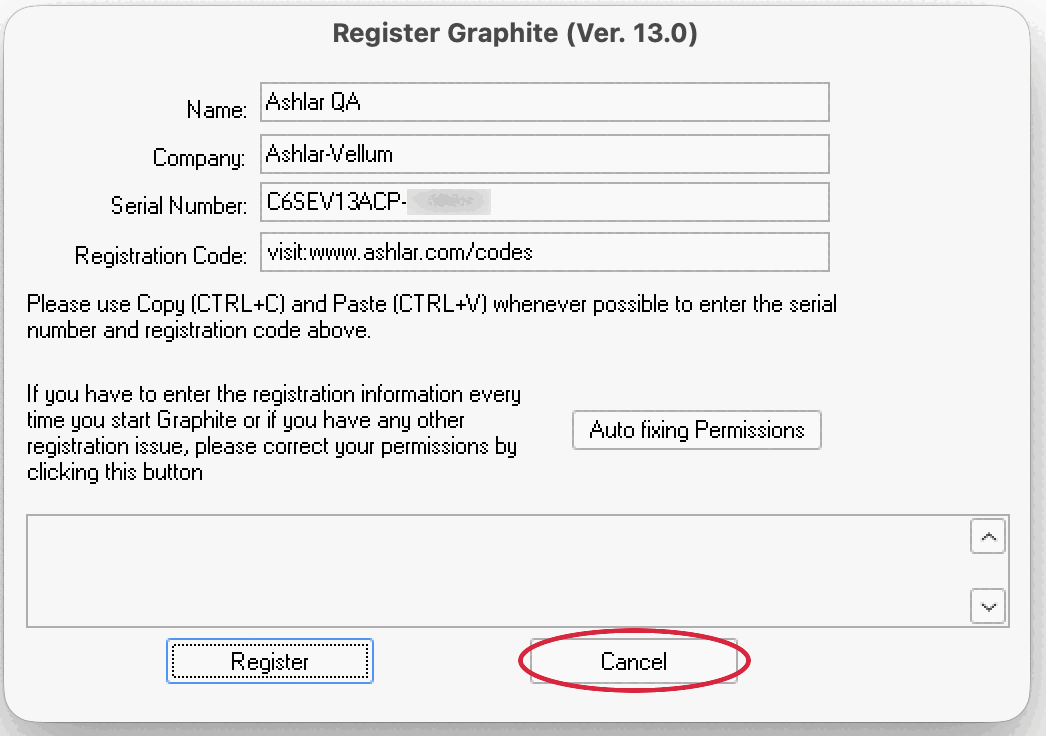
- Cancel — registered, and you opened the window yourself from Help ▸ Registration.
With more than about 30 days left to run, no window appears at launch at all — Graphite SE goes straight to the drawing canvas. Your serial number is kept, and shown back to you in capitals whatever case you typed it in.
You can open that same window
yourself at any time from Help ▸
Registration. On a registered Mac it shows an empty
message box, Cancel as the second button, and the
same visit:www.ashlar.com/codes placeholder in the
code box. Nothing is wrong there either.
(hover to see it)
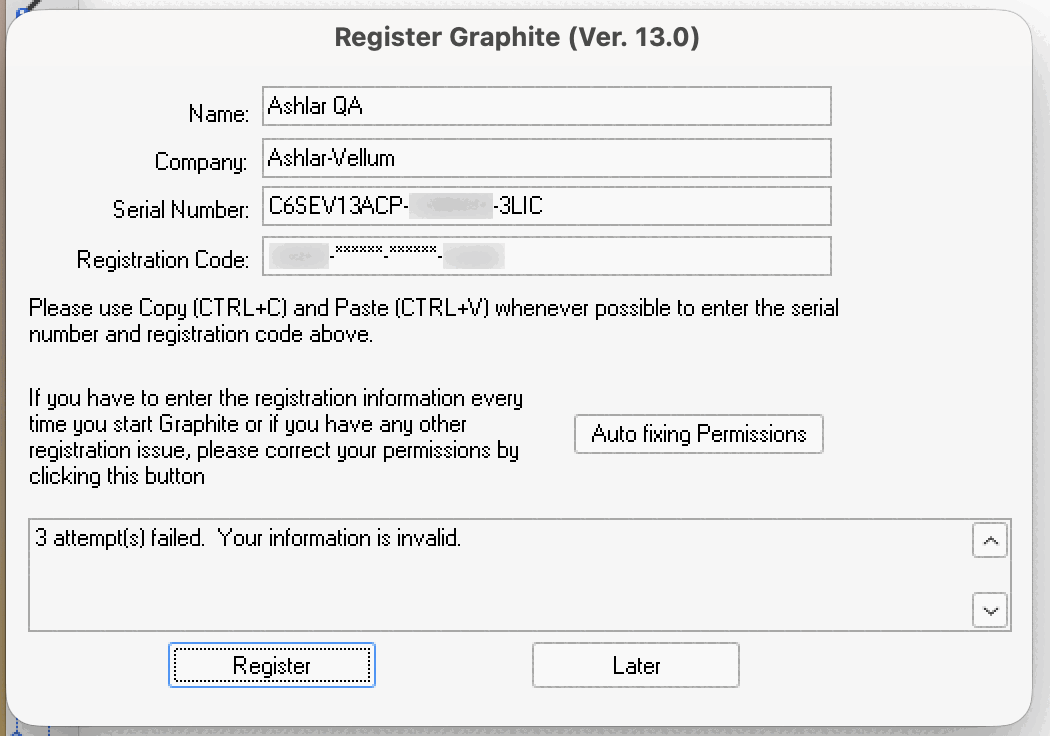
If the registration will not take
“Your information is invalid”
The message box keeps a count — “3 attempt(s) failed. Your information is invalid.” Far more often than not, the problem is the serial number rather than the code.
Your serial number and your registration code are issued
together, as a matched pair, against one exact serial number.
One licence can have more than one valid serial number, each with its
own code — and mixing them up fails in exactly the way a wrong
code does. Enter the serial number exactly as it appears on your
licence, including any suffix such as
-3Lic, together with the code that was issued
alongside it. Copy and paste both wherever you can, as the window
itself asks you to.
“It asks for my code every single time”
Graphite SE is being opened from a copy of itself that macOS still treats as freshly downloaded — usually the copy inside the disk image, opened straight from the installer window. macOS runs a copy like that from a read-only place of its own choosing, so nothing it saves survives being quit, and that includes your registration.
Quit Graphite SE, drag it into Applications as in step 4, and open it from there instead. If Graphite SE offers to do that move for you — “Move to Applications folder?” — click Move to Applications Folder, and register again once it reopens.
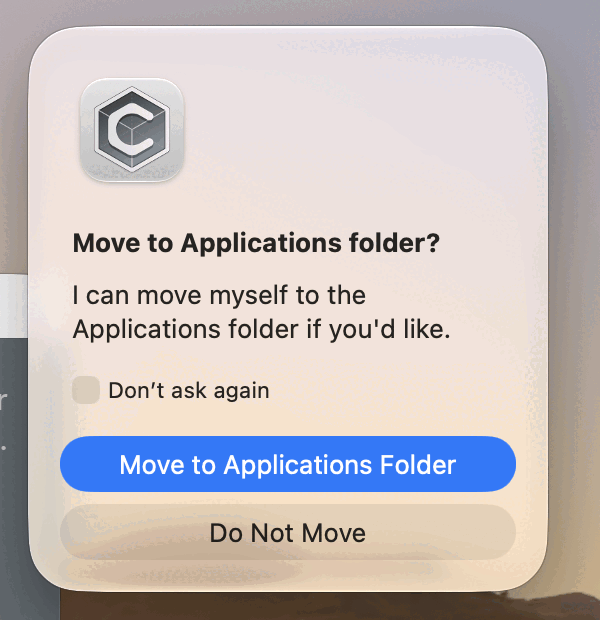
Following the steps on this page, you will not meet that prompt at all: you drag Graphite SE across before you ever open it, so the dialog you see on first launch is the downloaded-app check in step 6.
What about macOS 28?
Apple's prompt says it plainly: “Intel-based apps requiring Rosetta will not open in macOS 28, the next major release.” Graphite v13 SE is an Intel application, so that notice is about it. macOS 28 has not shipped and Apple has not named it; Apple's own guidance points to about a year away.
That is exactly what Graphite 27 is for: it is built for Apple silicon, so it does not need Rosetta at all. Until then, Graphite v13 SE on macOS 27 Golden Gate keeps working the way this page describes — and a Mac that stays on macOS 27 Golden Gate is not affected by anything Apple does in macOS 28.
The longer version of that story, including the alert Apple posts on macOS 26 Tahoe and macOS 27 Golden Gate, is on Apple Silicon, macOS, and your desktop software.
How we know
The install sequence on this page was captured on 2026-09-16 on a Mac
with Apple silicon running the shipping macOS 27.0 Golden
Gate release, build 26A428, with no Rosetta
installed — a clean machine, downloading Graphite v13 SE the
way a customer would. The registration screens were captured on
2026-09-17 on that same Mac and the same build, once Graphite SE was
installed and registered.
Nothing is retouched and nothing is reconstructed: this is the sequence as it happened. The two Rosetta-install shots in step 5, the close view in step 6 and the registration windows are cropped to the dialog so the wording is readable; everything inside them is unaltered. We have added exactly two kinds of mark, and nothing else: grey blurs hiding one real registration code and the digits of real serial numbers, and red rings around the button being described in the three registration windows.
The clip in step 4 was recorded on 2026-09-17 on that same Mac and the same build, in one continuous take with no sound, no speed change and nothing spliced — it is trimmed and cropped, and nothing else. One thing about it is worth saying plainly: the pointer is driven by our test harness rather than a hand, at a deliberately human pace, so that the same drag can be filmed the same way every time. Everything the Mac does in response — the icon following the pointer, the drop, the copy starting — is the real thing, unaltered.
Apple's own article on running Intel applications is support.apple.com/en-us/102527.
Questions
If anything on your Mac looks different from these screenshots, call or write — the numbers are beside this article. The full operating-system compatibility list for every release we ship is on the compatibility matrix.